⭐ Getting Started
Create items
The three Inventory types in Circle-Hand are Consignment, But Outright and New Goods.
September 29, 2026
You have 3 options to create new items:
Quick entry
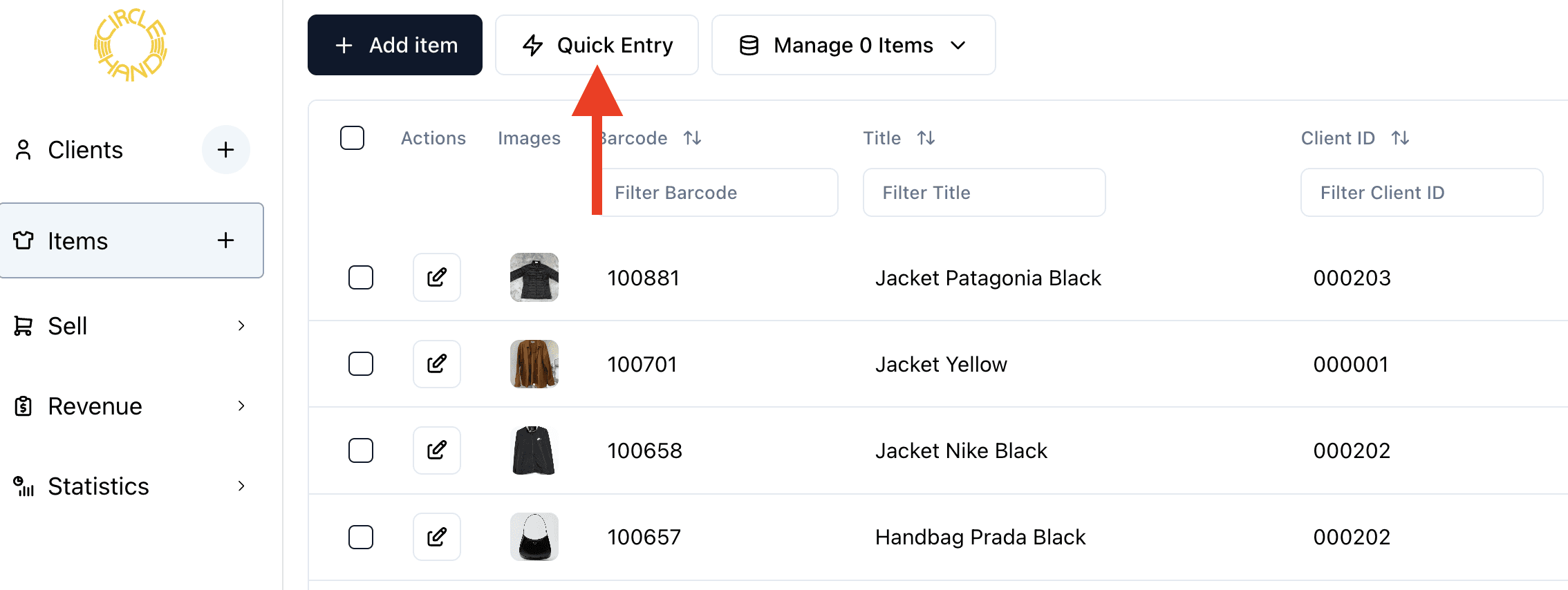
Add item entry with AI assisted workflow

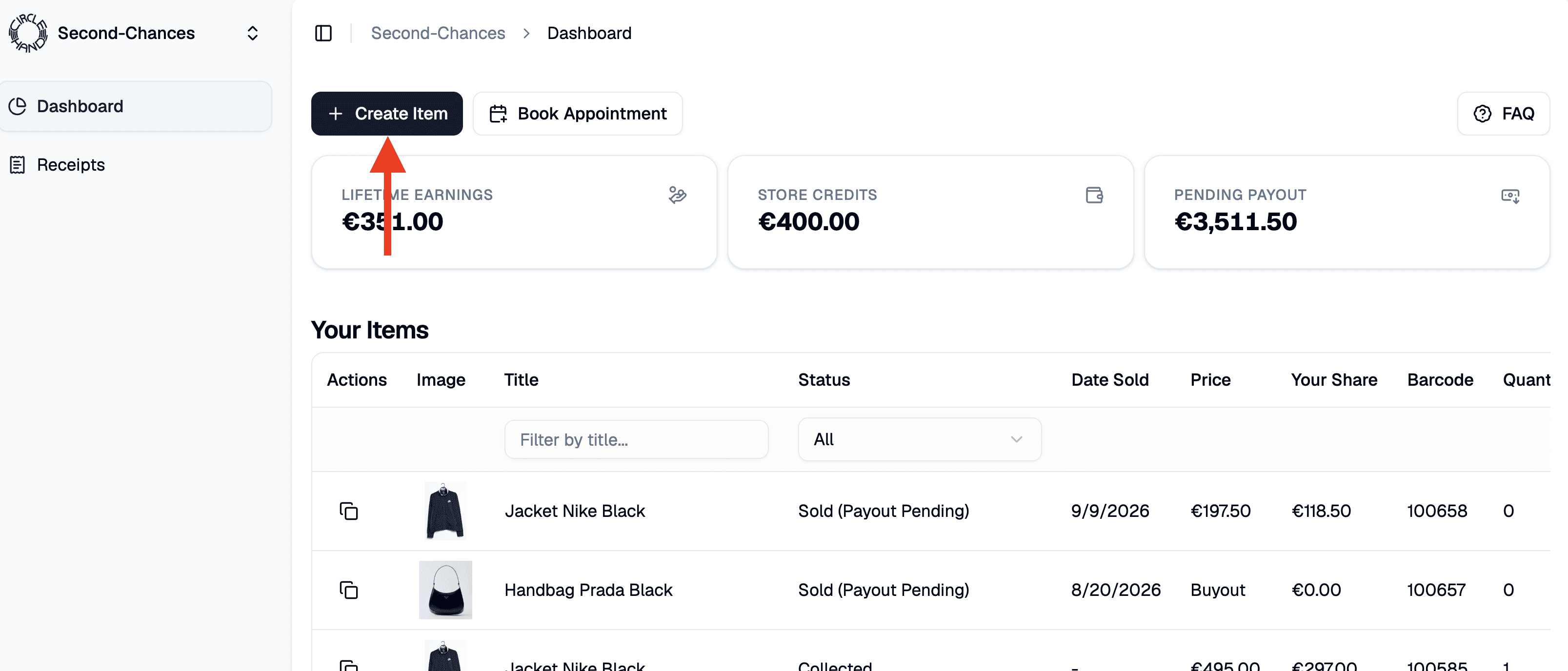
Clients create items from the portal (if activated in settings > client portal)
In settings > store > attributes you can customize all item fields and also add your own custom attributes:

To add consignment inventory you just click 'Consignment' at the top.
You can add a consignment share or fixed amount.
You can choose the consignment share per item, per client and based on price (settings > store > consignment share based on price).
Many stores add a return period for in-store or online sales (settings > store > return period). This will delay the payout automatically in case you offer returns or you want to optimize your cashflow and delay payouts.

To add buyout items you just click Buyout at the top. Instead of a consignment share you can enter a purchase price per item.
If buyout inventory is your default, go to settings > store > Default Compensation Type and change it to buyout.
Buyout items can directly be paid out via the payout button next to the client.
To add new goods you just click New Goods at the top. The store is selected automatically as client. If you prefer to add cost per new goods, you can just enter them as Buyout inventory and add a purchase price.
In settings > New Goods you can select the default client for new good inventory.
Any other questions? Write us: max@circle-hand.com